> For the complete documentation index, see [llms.txt](https://docs.xyb.co/llms.txt). Markdown versions of documentation pages are available by appending `.md` to page URLs; this page is available as [Markdown](https://docs.xyb.co/xyb-console/workflow-management/building-blocks-of-a-workflow/trigger-nodes-in-workflows.md).
# Trigger Nodes in Workflows
Trigger nodes define the event that initiates a workflow run. Each workflow must have at least one trigger, which connects directly to the **Start node**. Depending on the workflow type (payment, automation, etc.), different trigger types are available.
***
### Types of Trigger Nodes
#### 1. **Internal Event Trigger**
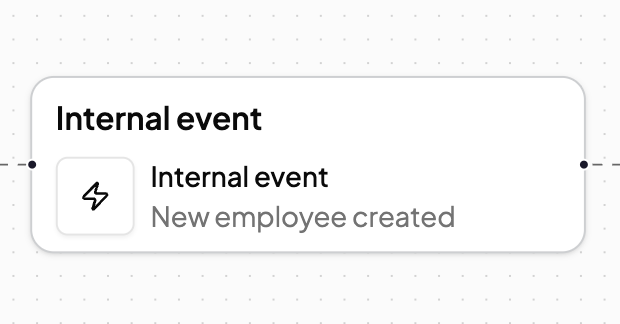
Internal event triggers are based on system activity within XYB services. These are predefined events that originate from core services like Tasks, Ledger, Entity Management, and more.
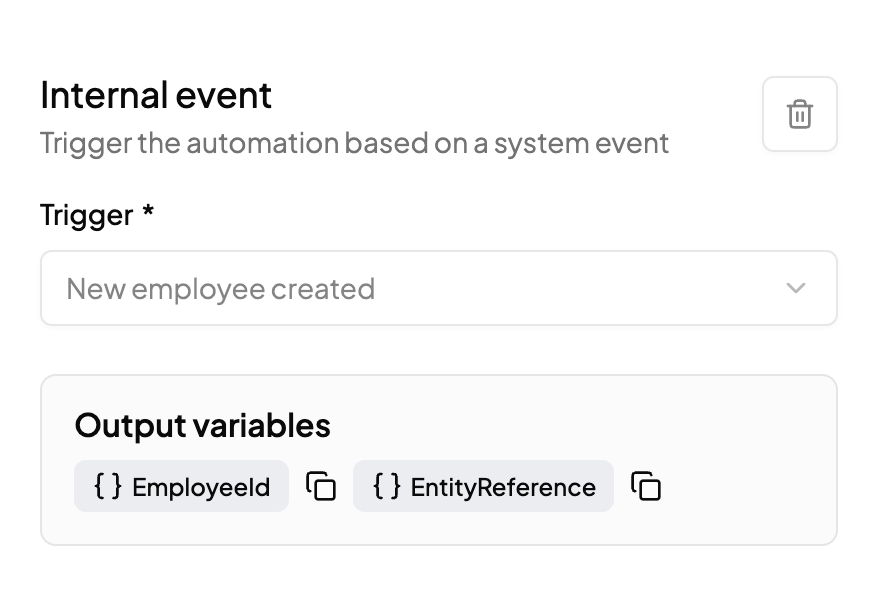
Once you select an internal event, you’ll see the trigger options in the configuration panel on the right. Each event exposes **output variables,** such as `EmployeeId` or `EntityReference` which can be used in downstream nodes like tasks, conditions, or Slack messages. These variables are automatically populated when the event fires, allowing you to build dynamic and data-driven logic across your workflow
***
#### 2. **Webhook Trigger**
The **Webhook** node lets you trigger a workflow from an external system by sending a POST request to a unique, auto-generated URL. This node is ideal for integrating third-party systems or custom apps into your automation flows.
#### How It Works
* When you add a Webhook node to your workflow, a Webhook URL is automatically generated.
* This URL is specific to that workflow version, and cannot be edited.
* You can copy and share this URL with any external system that should trigger the automation.
* The workflow starts every time a valid POST request is made to this endpoint with the correct authentication and payload format.\

#### What You Need To Do
1. **Add a Webhook node** in your workflow (after the Start node).
2. A **Webhook URL** will appear automatically.
3. Paste a **sample JSON payload** in the `Sample payload` section.
* This helps extract and configure **output variables** automatically.
* These variables can then be used in downstream nodes (e.g., Slack, Task, Code, etc.)
***
### Connecting Trigger Nodes
* **Placement**: Always connect directly to the **Start node**.
* **Next Steps**: From the trigger node, add action or task nodes to define what should happen once the event fires.
***
---
# Agent Instructions
This documentation is published with GitBook. GitBook is the documentation platform designed so that both humans and AI agents can read, navigate, and reason over technical content effectively. Learn more at gitbook.com.
## Querying This Documentation
If you need additional information that is not directly available in this page, you can query the documentation dynamically by asking a question.
Perform an HTTP GET request on the current page URL with the `ask` query parameter, and the optional `goal` query parameter:
```
GET https://docs.xyb.co/xyb-console/workflow-management/building-blocks-of-a-workflow/trigger-nodes-in-workflows.md?ask=&goal=
```
`ask` is the immediate question: it should be specific, self-contained, and written in natural language.
`goal` is optional and describes the broader end goal you are ultimately trying to accomplish on behalf of the user. GitBook uses it to tailor the answer towards what is most useful for that goal.
The response will contain a direct answer to the question and relevant excerpts and sources from the documentation.
Use this mechanism when the answer is not explicitly present in the current page, you need clarification or additional context, or you want to retrieve related documentation sections.