> For the complete documentation index, see [llms.txt](https://docs.xyb.co/llms.txt). Markdown versions of documentation pages are available by appending `.md` to page URLs; this page is available as [Markdown](https://docs.xyb.co/xyb-console/workflow-management/track-live-stats-and-errors-for-workflows.md).
# Track Live Stats and Errors for Workflows
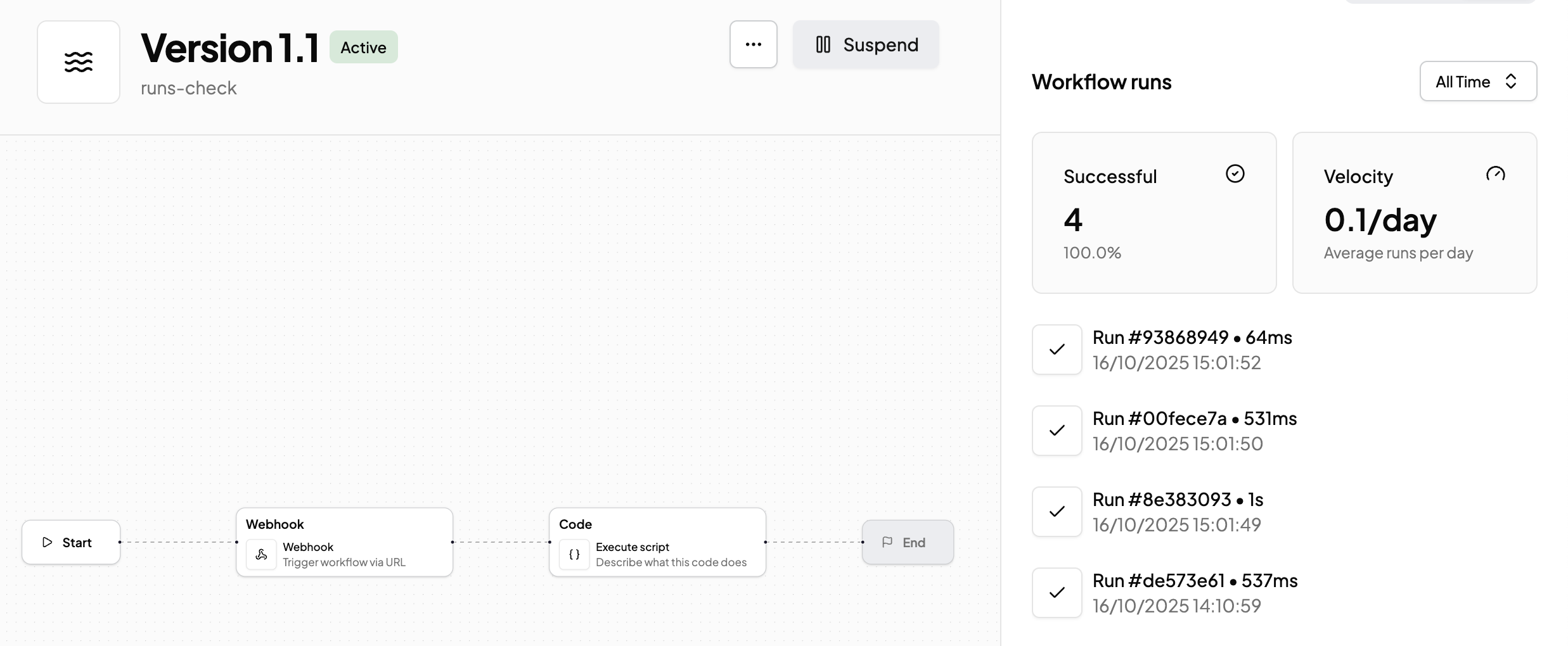
Once a workflow is active, it's essential to monitor how it's performing in real time. The **Runs** panel gives you complete visibility into execution trends, failure rates, and active run statuses, all directly from the canvas.
You can track workflow performance and investigate run-level behavior from two key views:
**1. Canvas View (Workflow Designer)**
When viewing a workflow version on the canvas, click the **Runs** toggle in the top-right corner to open the **Runs** panel.
Here you can view:
* **Success rate:** the percentage of completed runs that ended successfully.
* **Velocity:** how many runs are processed per minute.
* **Completed and In-progress runs:** each entry shows status (success, failure, stopped), duration, and timestamp.
You can also:
* Click on any run to inspect its details.
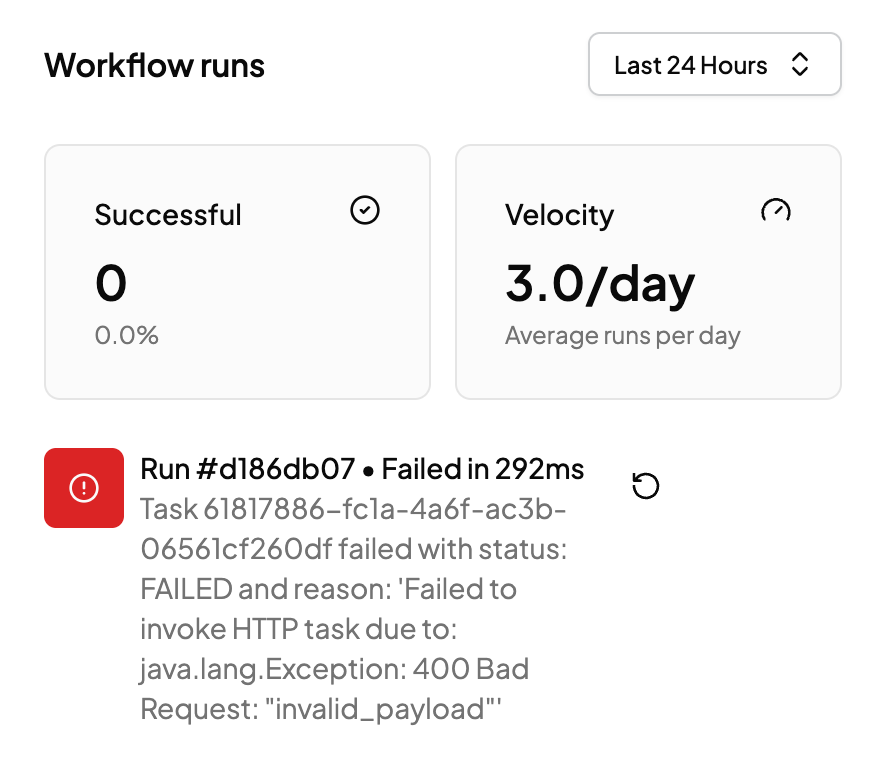
* See failure reasons or retry failed/stopped runs from the actions menu.
* Use filters (e.g. "Last 24 hours") to scope the data by time window.
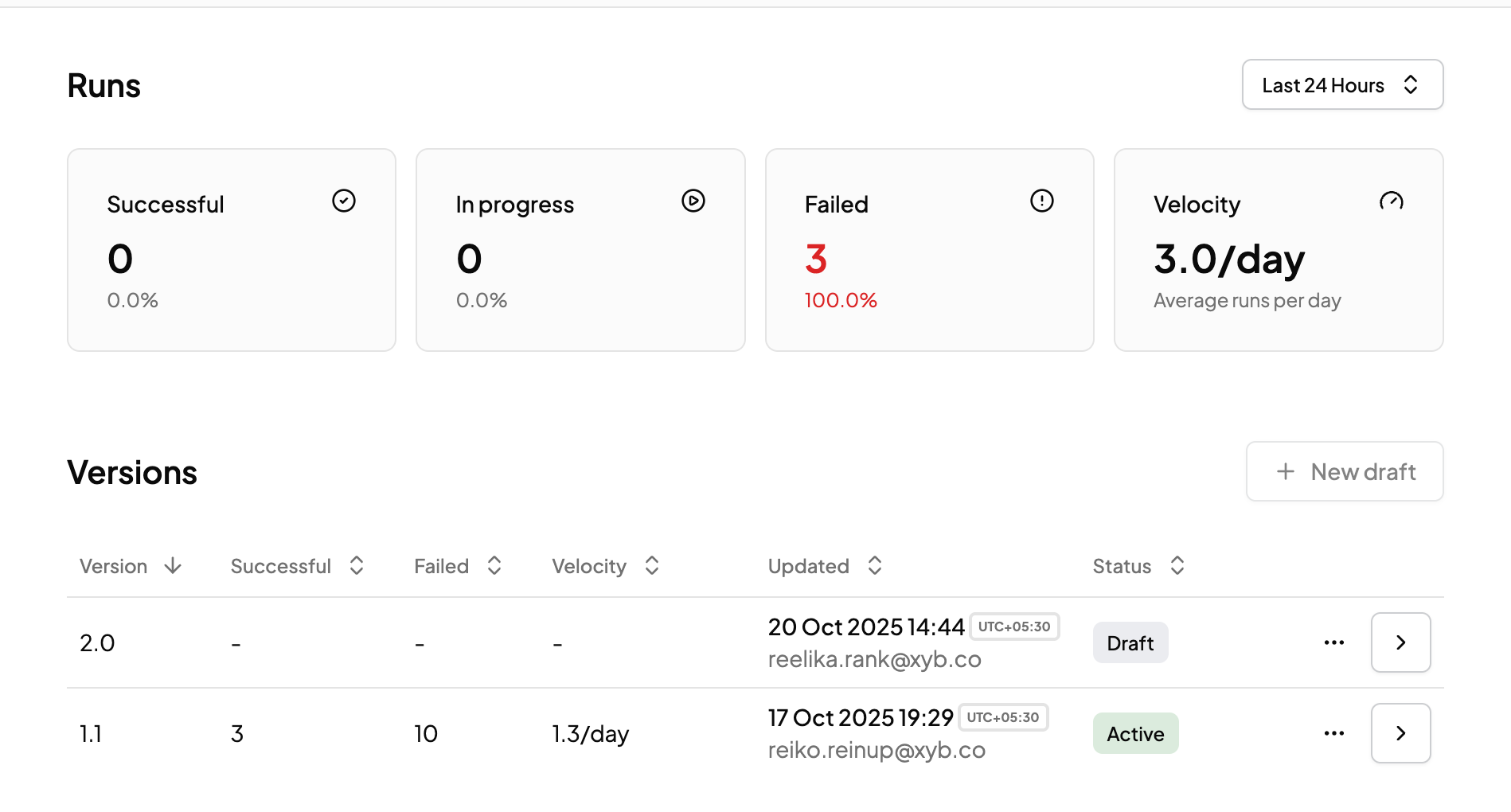
**2. Versions Table**
From the **Workflows** list view, each version row shows a summary of:
* Runs that were **Successful**
* Runs **In progress**
* Runs that **Failed**
* Average **Velocity** (runs/min)\\
Clicking into a version brings you to the canvas with full run logs and flow visualization.
#### Investigating Failures
Failed or stopped runs are clearly marked with red icons. You can view"
* Error messages with stack trace or failed endpoint
* Task that caused the error
* Option to **Retry** the run or **Stop** if still in progress
This makes it easy to quickly identify issues such as:
* Misconfigured webhook URLs
* Timeouts
* User-stopped executions
---
# Agent Instructions
This documentation is published with GitBook. GitBook is the documentation platform designed so that both humans and AI agents can read, navigate, and reason over technical content effectively. Learn more at gitbook.com.
## Querying This Documentation
If you need additional information that is not directly available in this page, you can query the documentation dynamically by asking a question.
Perform an HTTP GET request on the current page URL with the `ask` query parameter, and the optional `goal` query parameter:
```
GET https://docs.xyb.co/xyb-console/workflow-management/track-live-stats-and-errors-for-workflows.md?ask=&goal=
```
`ask` is the immediate question: it should be specific, self-contained, and written in natural language.
`goal` is optional and describes the broader end goal you are ultimately trying to accomplish on behalf of the user. GitBook uses it to tailor the answer towards what is most useful for that goal.
The response will contain a direct answer to the question and relevant excerpts and sources from the documentation.
Use this mechanism when the answer is not explicitly present in the current page, you need clarification or additional context, or you want to retrieve related documentation sections.