> For the complete documentation index, see [llms.txt](https://docs.xyb.co/llms.txt). Markdown versions of documentation pages are available by appending `.md` to page URLs; this page is available as [Markdown](https://docs.xyb.co/xyb-console/workflow-management/workflow-version-control.md).
# Workflow Version Control
Workflow versioning gives you full control over how and when your logic changes go live. From drafting and reviewing to activating or ending a version, this article outlines how to manage your workflow lifecycle effectively.
***
### Creating a New Draft Version
To make updates to an already activated workflow:
1. Go to the **Workflows** section.
2. From the `...` menu next to an active version, select **Copy as draft**.
A new draft version will be created with the same nodes as the source version. This draft can now be edited safely without affecting the active version.
> **Note:** Additionally, the user can also create a new draft from the **New draft** button above the Versions list. This will create a clean draft to start a version from scratch.
>
> Each workflow can have only one active draft at a time. If a draft already exists, you’ll need to delete it to create a new one.
***
### Activating a Draft Version
Once you’ve finished editing a draft:
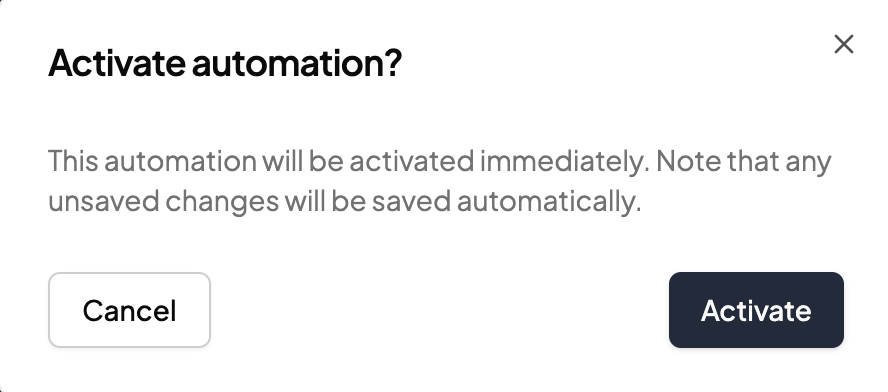
1. From the `...` menu , click **Activate** and on the confirmation screen and the draft becomes the **Active** version.\\
**Note:** You can only have one **Active** or **Suspended** version at a time. Trying to activate another version will result in an error unless the existing one is ended or deleted.
***
### Suspend a Version
1. From the `...` menu, select **Suspend** to temporarily pause a workflow version.\\
2. Click **Pause** in the confirmation screen. No new runs will be triggered while suspended, but current runs will complete.\
\
Suspended versions can later be **resumed** or **ended**, depending on your use case. You cannot activate another version while you have a version suspended. Terminate the version to activate another one.
### Terminating a Version
You can choose to manually end a version without activating a new one:
* From the `...` menu of an active or suspended version, click **Terminate**.
* The version status updates to **Ending**, indicating it won’t accept new runs.\

* Background polling ensures that once all active runs complete, the status changes to **Terminated** automatically.
***
### Deleting Versions
Drafts can be deleted anytime by clicking **Delete** from the `...` menu. Only **draft versions** can be deleted and deleting a draft will also delete the workflow if no other versions exist.
**Note:** Once a version has been activated (and after that suspended), it can no longer be deleted, only **terminated**. This is because there may already be runs associated with it, so it cannot be removed entirely.
***
### Things to Remember
* Each workflow can only have **one draft version** at a time.
* Approval-based workflows will enter an **In review** status until approved.
* You can always track the status of each version (Draft, Active, In review, Terminated, Suspended, Deleted) from the **Versions** table.\

---
# Agent Instructions
This documentation is published with GitBook. GitBook is the documentation platform designed so that both humans and AI agents can read, navigate, and reason over technical content effectively. Learn more at gitbook.com.
## Querying This Documentation
If you need additional information that is not directly available in this page, you can query the documentation dynamically by asking a question.
Perform an HTTP GET request on the current page URL with the `ask` query parameter, and the optional `goal` query parameter:
```
GET https://docs.xyb.co/xyb-console/workflow-management/workflow-version-control.md?ask=&goal=
```
`ask` is the immediate question: it should be specific, self-contained, and written in natural language.
`goal` is optional and describes the broader end goal you are ultimately trying to accomplish on behalf of the user. GitBook uses it to tailor the answer towards what is most useful for that goal.
The response will contain a direct answer to the question and relevant excerpts and sources from the documentation.
Use this mechanism when the answer is not explicitly present in the current page, you need clarification or additional context, or you want to retrieve related documentation sections.