> For the complete documentation index, see [llms.txt](https://docs.xyb.co/llms.txt). Markdown versions of documentation pages are available by appending `.md` to page URLs; this page is available as [Markdown](https://docs.xyb.co/xyb-console/approvals-and-policies/creating-and-maintaining-approval-policies.md).
# Creating and Maintaining Approval Policies
Approval policies let you control which actions in the system require review and who must authorize them. By setting up policies, you ensure that sensitive changes (such as product version updates) go through the right checks before being applied.
***
### Creating a New Approval Policy
Follow these steps to create a new policy:
#### 1. Navigate to Policies
* Go to **Admin > Approvals > Policies**.
* Click + **New Policy**.
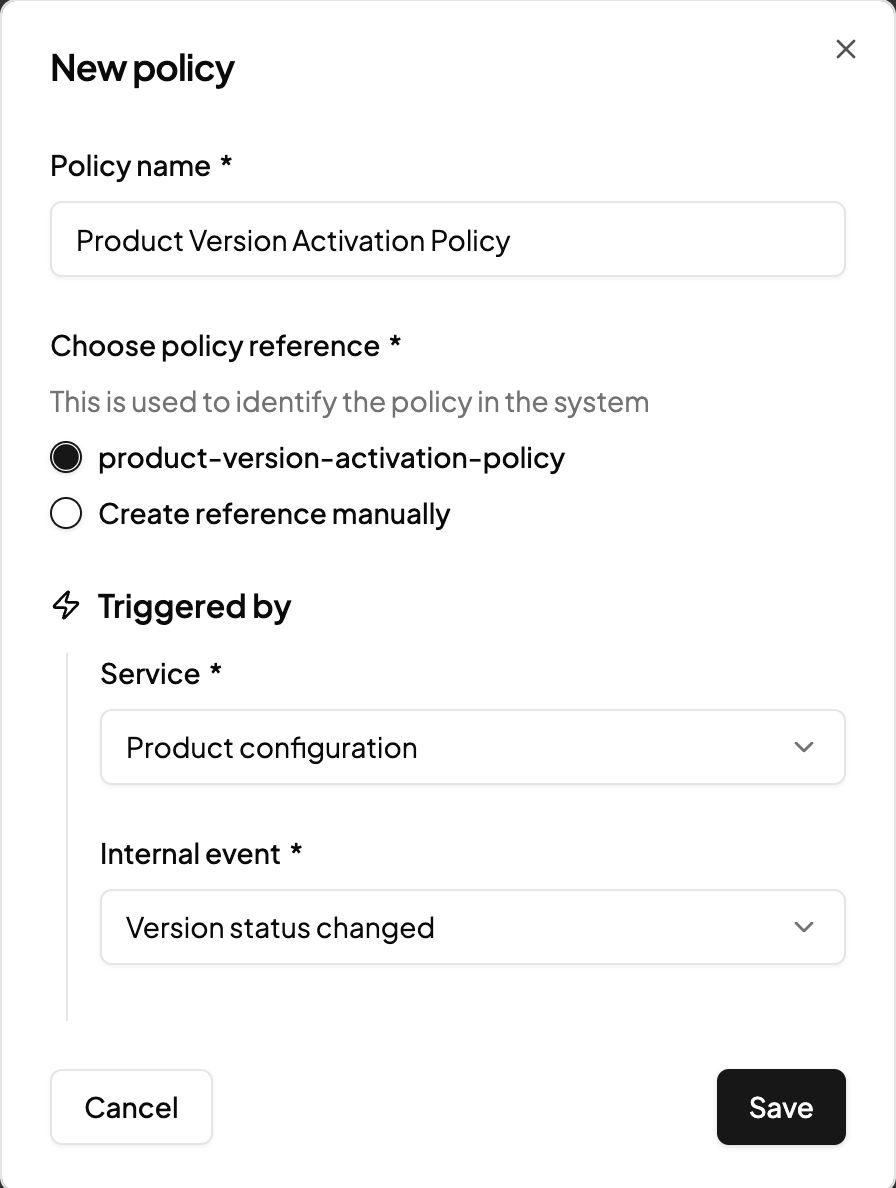
#### 2. Add Policy Details
* **Policy name:** Enter a descriptive name (e.g., *Product version status change*).
* **Policy reference:** Either use the system reference or create one manually.
#### 3. Configure Triggers
Approval policies are triggered by a **service** and an **event**.\\
* **Service:** Select the service where the policy applies (e.g., *Product configuration*).
* **Internal event:** Select the event that requires approval (e.g., *Version status changed*).
* **Attributes:** Define which specific changes should trigger approval (e.g., *DRAFT to ACTIVE*, *ACTIVE to EXPIRING*).
#### 4. Assign Approvers
* Search and add one or more employees who will act as approvers.
* Approvers will receive approval requests when the policy is triggered.
#### 5. Set Minimum Approvals
* Define the minimum number of approvals required (e.g., 1 or 2).
* The system enforces this rule before the change can proceed.
#### 6. Save Policy
Click **Save** to activate the policy. It will now apply automatically whenever the defined event occurs.
***
### Editing an Existing Policy
* Go to **Approvals > Policies**.
* Click the Edit icon next tot the policy you want to update.
* Make changes to triggers, approvers, or approval requirements.
* Save your changes.\
**Note**: Editing a policy affects future approval requests but does not retroactively change already-created requests.
***
### Tips & Best Practices
* Use **clear names** for policies so approvers can quickly recognize what they cover.
* Keep **approver lists up to date** to reflect team changes.
* Use **multiple approvers** for high-risk changes.
* Regularly **review and retire unused policies** to keep the system clean and compliant.
---
# Agent Instructions
This documentation is published with GitBook. GitBook is the documentation platform designed so that both humans and AI agents can read, navigate, and reason over technical content effectively. Learn more at gitbook.com.
## Querying This Documentation
If you need additional information that is not directly available in this page, you can query the documentation dynamically by asking a question.
Perform an HTTP GET request on the current page URL with the `ask` query parameter, and the optional `goal` query parameter:
```
GET https://docs.xyb.co/xyb-console/approvals-and-policies/creating-and-maintaining-approval-policies.md?ask=&goal=
```
`ask` is the immediate question: it should be specific, self-contained, and written in natural language.
`goal` is optional and describes the broader end goal you are ultimately trying to accomplish on behalf of the user. GitBook uses it to tailor the answer towards what is most useful for that goal.
The response will contain a direct answer to the question and relevant excerpts and sources from the documentation.
Use this mechanism when the answer is not explicitly present in the current page, you need clarification or additional context, or you want to retrieve related documentation sections.