> For the complete documentation index, see [llms.txt](https://docs.xyb.co/llms.txt). Markdown versions of documentation pages are available by appending `.md` to page URLs; this page is available as [Markdown](https://docs.xyb.co/xyb-console/workflow-management/building-blocks-of-a-workflow/trigger-nodes-in-workflows.md).

# Trigger Nodes in Workflows

Trigger nodes define the event that initiates a workflow run. Each workflow must have at least one trigger, which connects directly to the **Start node**. Depending on the workflow type (payment, automation, etc.), different trigger types are available.

***

### Types of Trigger Nodes

#### 1. **Internal Event Trigger**

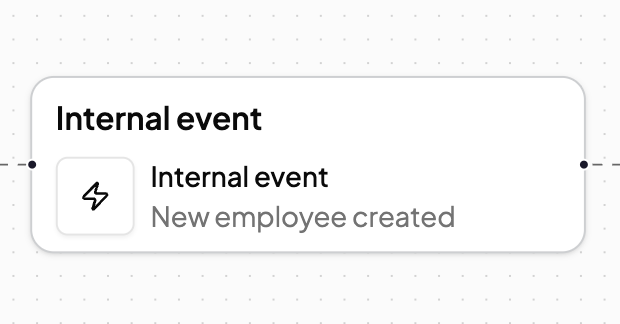
Internal event triggers are based on system activity within XYB services. These are predefined events that originate from core services like Tasks, Ledger, Entity Management, and more.

<div align="left"><figure><img src="https://1792085566-files.gitbook.io/~/files/v0/b/gitbook-x-prod.appspot.com/o/spaces%2FkIq1PGbSmC3vQR1DFPNM%2Fuploads%2Fgit-blob-0cace20f9f0ae619570786d338c89d208babd4b9%2Fimage.png?alt=media" alt="" width="310"><figcaption></figcaption></figure></div>

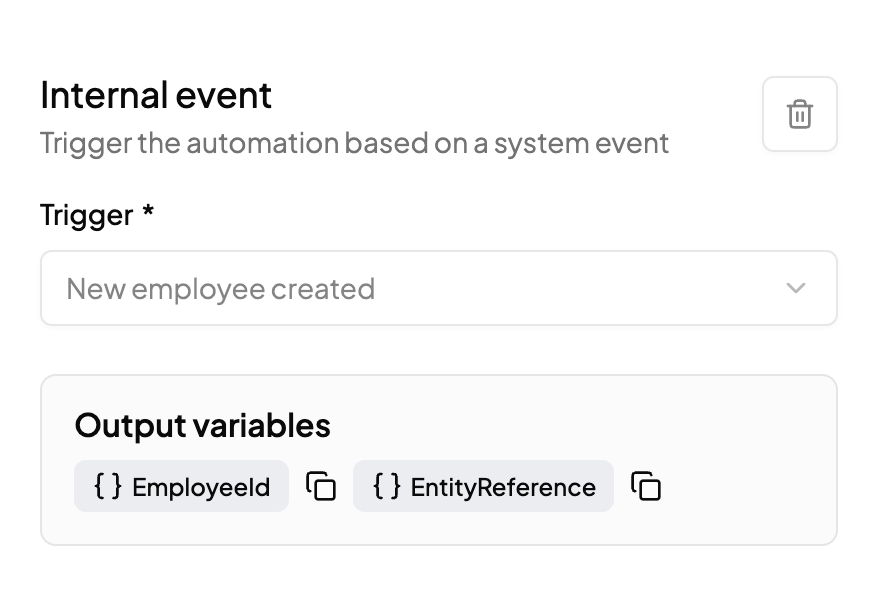
Once you select an internal event, you’ll see the trigger options in the configuration panel on the right. Each event exposes **output variables,** such as `EmployeeId` or `EntityReference` which can be used in downstream nodes like tasks, conditions, or Slack messages. These variables are automatically populated when the event fires, allowing you to build dynamic and data-driven logic across your workflow

<div align="left"><figure><img src="https://1792085566-files.gitbook.io/~/files/v0/b/gitbook-x-prod.appspot.com/o/spaces%2FkIq1PGbSmC3vQR1DFPNM%2Fuploads%2Fgit-blob-844d2aacb54a4b6e4917361417e076f35dffa9bc%2Fimage.png?alt=media" alt="" width="375"><figcaption></figcaption></figure></div>

***

#### 2. **Webhook Trigger**

The **Webhook** node lets you trigger a workflow from an external system by sending a POST request to a unique, auto-generated URL. This node is ideal for integrating third-party systems or custom apps into your automation flows.

#### How It Works

* When you add a Webhook node to your workflow, a Webhook URL is automatically generated.
* This URL is specific to that workflow version, and cannot be edited.
* You can copy and share this URL with any external system that should trigger the automation.
* The workflow starts every time a valid POST request is made to this endpoint with the correct authentication and payload format.\
  ![](https://1792085566-files.gitbook.io/~/files/v0/b/gitbook-x-prod.appspot.com/o/spaces%2FkIq1PGbSmC3vQR1DFPNM%2Fuploads%2Fgit-blob-746613cfce90a02133f4e4d5000f9dd66fc0d902%2Fimage.png?alt=media)

#### What You Need To Do

1. **Add a Webhook node** in your workflow (after the Start node).
2. A **Webhook URL** will appear automatically.
3. Paste a **sample JSON payload** in the `Sample payload` section.
   * This helps extract and configure **output variables** automatically.
   * These variables can then be used in downstream nodes (e.g., Slack, Task, Code, etc.)

***

### Connecting Trigger Nodes

* **Placement**: Always connect directly to the **Start node**.
* **Next Steps**: From the trigger node, add action or task nodes to define what should happen once the event fires.

***

---

# Agent Instructions
This documentation is published with GitBook. GitBook is the documentation platform designed so that both humans and AI agents can read, navigate, and reason over technical content effectively. Learn more at gitbook.com.

## Querying This Documentation
If you need additional information that is not directly available in this page, you can query the documentation by asking a question.

Perform an HTTP GET request on the following URL with the `ask` and `goal` query parameters:

```
GET https://docs.xyb.co/xyb-console/workflow-management/building-blocks-of-a-workflow/trigger-nodes-in-workflows.md?ask=<question>&goal=<user_goal>
```

`ask` is the immediate question: it should be specific, self-contained, and written in natural language.
`goal` is what the user is ultimately trying to achieve, the reason they need the answer. Sharing it helps GitBook give you a better, more relevant answer. A goal is most helpful when it describes the outcome the user wants rather than restating the question. For example, with `ask=how do I create an API token`, a goal like `automate deployments from our CI pipeline` lets GitBook tailor the answer to that use case.

The response will contain a direct answer to the question and relevant excerpts and sources from the documentation.

Use this mechanism when the answer is not explicitly present in the current page, you need clarification or additional context, or you want to retrieve related documentation sections.