> For the complete documentation index, see [llms.txt](https://docs.xyb.co/llms.txt). Markdown versions of documentation pages are available by appending `.md` to page URLs; this page is available as [Markdown](https://docs.xyb.co/manage-employees-roles-and-permissions/add-employees-with-pre-defined-roles/bulk-employee-upload.md).
# Bulk Employee Upload
If you need to create multiple employee profiles at once, Console allows you to upload a complete employee list using a CSV file. This is useful when onboarding a large workforce, configuring environments for testing, or migrating employee data into the system.
**Bulk upload is irreversible,** once employees are added, they cannot be deleted, only deactivated.
***
### To bulk upload employees:
In Console, go to:
1. **Access Management > Employees**
2. Then click the **Upload CSV** button in the top right corner.
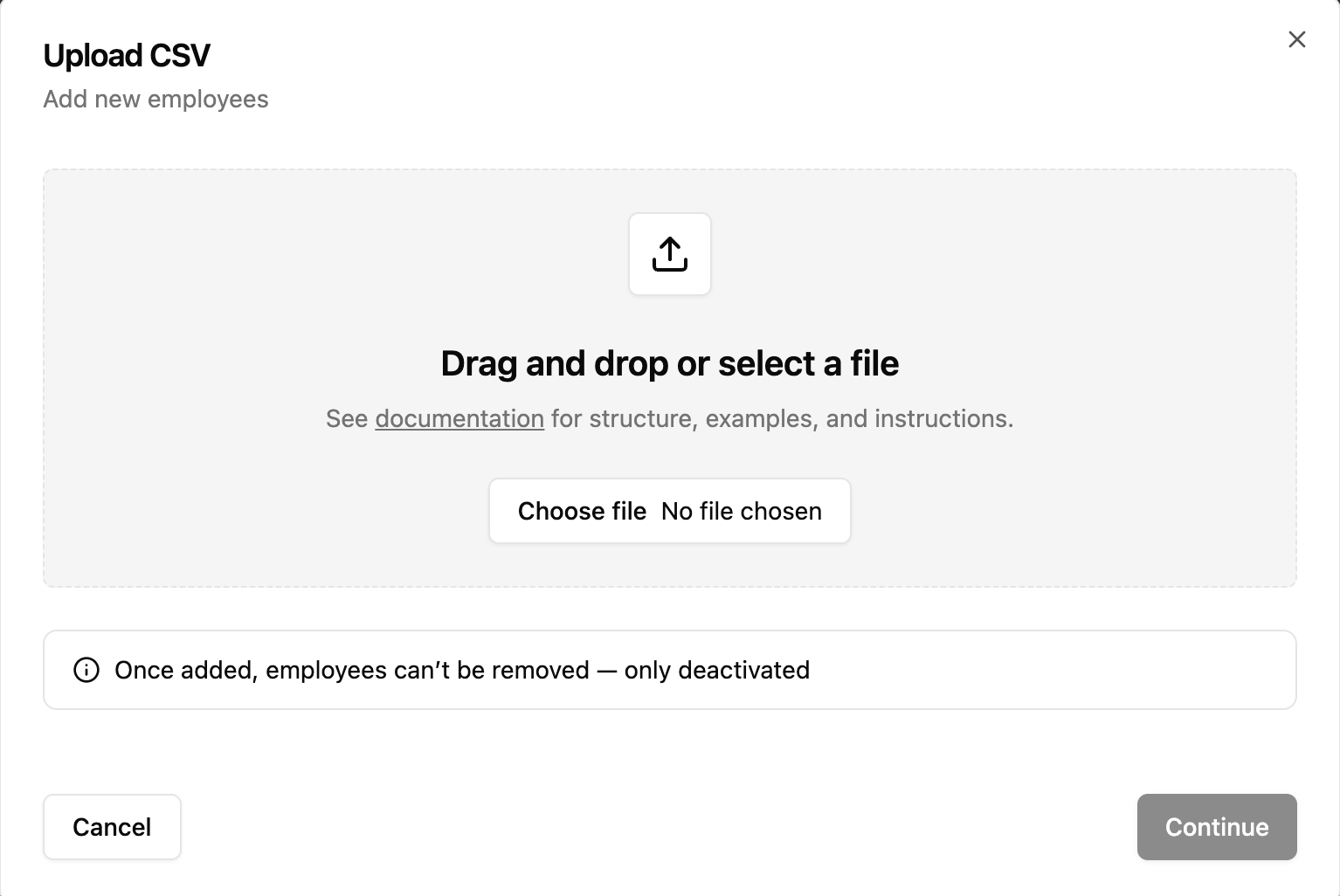
The upload screen will appear:\\
***
### Preparing the CSV File
Create a CSV file with the following structure. Each row should represent one employee record. Ensure the data is accurate, as mistakes can lead to partial or failed imports.
| Column | Required | Description |
| ---------- | ------------------------------------------------------------------------------------- | ---------------------------------------------------------------------------------- |
| Username | Yes | Employee’s email address |
| First Name | Optional | First name of the employee |
| Last Name | Optional | Last name of the employee |
| Roles | Optional (roles must already exist, should it be a pratice to verify the roles exist) | Comma-separated list of role identifiers (e.g., `ROLE_ADMIN`, `ROLE_PAYMENTS_OPS`) |
You can download a blank template to get started:
{% file src="/files/TfkaLTYj80cxqupXNVzO" %}
### Uploading Your File
1. Drag and drop your prepared CSV file into the upload area or click **Choose file**.
2. Click **Continue** to begin the import.
**Note**:
* Maximum file size is **2 MB**
* Only **CSV files** are supported
* Up to **1,000 rows** can be uploaded in one file
***
### Frontend Validation
Before uploading starts, the system will check for:
* **File type**: Only `.csv` files are accepted
* **File size**: Files larger than 2MB will be rejected
**Errors:**
* *Unsupported file type*: "Please upload a CSV file."
* *File too large*: "The maximum file size allowed is 2 MB. Please upload a smaller file."
***
***
### Import Outcomes
#### **Import Successful**
All rows were valid and imported. A confirmation will show the number of employees added (e.g., “1,023 employees imported”).
#### **Import Partially Completed**
Some rows were invalid, and others were successfully imported. You’ll see a detailed breakdown of errors:
| Row | Name | Surname | Error |
| --- | ----- | ------- | ------------------------- |
| 247 | Alex | Smith | Surname cannot be empty |
| 264 | Erica | Berg | Email is invalid |
| 341 | | | Couldn’t process this row |
Only valid entries are processed. You can fix the errors and re-upload just the failed entries.
#### **Import Failed**
No employees were imported due to:
* Unsupported file format
* Corrupted CSV (e.g., binary data)
* Incorrect structure
***
### Tips for a Clean Import
* If the file contains usernames that already exist in the system, those rows will fail with a uniqueness error. Avoid re-uploading the same file without removing previously imported usernames.
* Use consistent formats for values (no trailing spaces, correct casing)
* Avoid uploading test data to production
* Review roles before assigning these impact access permissions
* Deactivated employees cannot be removed, only reactivated if needed
***
---
# Agent Instructions
This documentation is published with GitBook. GitBook is the documentation platform designed so that both humans and AI agents can read, navigate, and reason over technical content effectively. Learn more at gitbook.com.
## Querying This Documentation
If you need additional information that is not directly available in this page, you can query the documentation dynamically by asking a question.
Perform an HTTP GET request on the current page URL with the `ask` query parameter, and the optional `goal` query parameter:
```
GET https://docs.xyb.co/manage-employees-roles-and-permissions/add-employees-with-pre-defined-roles/bulk-employee-upload.md?ask=&goal=
```
`ask` is the immediate question: it should be specific, self-contained, and written in natural language.
`goal` is optional and describes the broader end goal you are ultimately trying to accomplish on behalf of the user. GitBook uses it to tailor the answer towards what is most useful for that goal.
The response will contain a direct answer to the question and relevant excerpts and sources from the documentation.
Use this mechanism when the answer is not explicitly present in the current page, you need clarification or additional context, or you want to retrieve related documentation sections.